Saturday, 17 March 2012

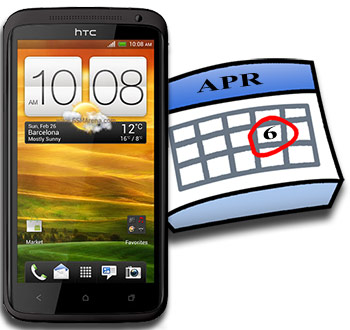
HTC One X to hit UK on April 5


Fortunately those delay rumors turned out to be completely unfounded and the HTC One X is keeping nicely to its market availability schedule. O2 UK just confirmed though its Twitter account that it will be getting the next HTC flagship on April 5, which is mere three weeks away now.


We already knew the carrier was getting the smartphone, but now that we have a specific release date, it may be a good time to start saving. O2 refused to disclose the pricing of the smartphone, saying that it's too early for anything to be settled just yet, but some retailers have already spilled the beans on it.


The HTC One X will be available for free on a £36/month two-year contract or for £119.99 on the cheapest available, £26/month deal. An HTC MediaLink HD USB to HDMI adapter will be gifted to everyone, who pre-orders the smartphone.


Sadly, Pay as you go deals details aren't available just yet and we are suspecting those might not be available in the first weeks of the One X availability. We'll hope to find out more about that in the following days, so stay tuned.

Look for In Today’s Laptops


What to Look for
In Today’s Laptops


Before going shopping, you need to know which features come
standard these days, and which new technologies are worth the
money. Here’s what your next laptop should have.

Go online or walk into any store’s electronics section to find a laptop, and chances you will feel paralyzed at the sheer variety of laptops available. Most shoppers have a general idea of what their laptop should look like and what they want in terms of features, but are often intimidated by the sheer number and baffling complexities of the laptops available, which have grown to include terms such as netbooks and Ultrabooks, and small business (as opposed to enterprise) laptops. But don’t lose heart. This buying guide will point you in the right direction, whether you’re shopping for an ultraportable or something massive to replace your desktop, because your decision to buy what you thought was the perfectly configured laptop can suddenly be affected by unknown forces, such as a price changes. We’re here to help you get back into the right mindset, immediately spot the trends, and finally, bring home that perfect laptop for you.

Laptop Design is a Key Differentiator
Dell XPS 15z 
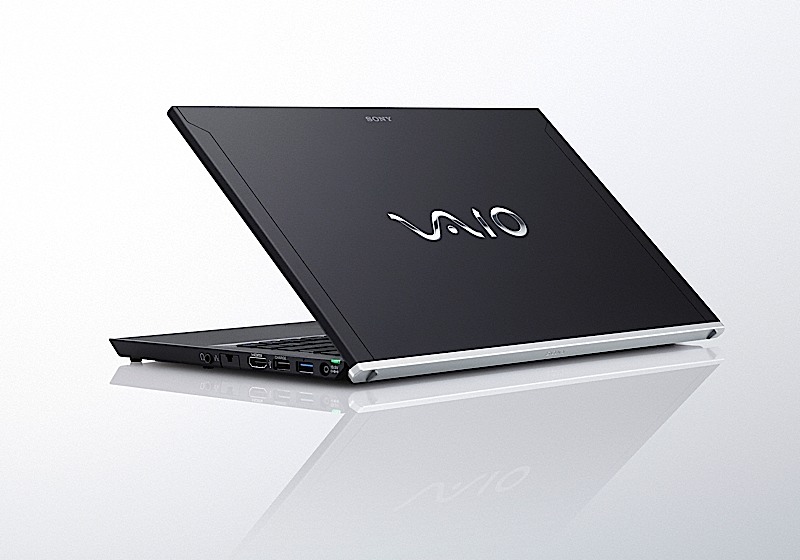
Sony VAIO VPC-Z214GX 
Plastic is still the most commonly used material in laptop frames, and while inexpensive, manufacturers have managed to turn them into art forms. The most common technique is a process called In-Mold Decoration (IMD)—a process made popular by HP, Toshiba, and Acer—in which decorative patterns are infused between plastic layers. This process has evolved into textures and etched imprints, where the patterns can be felt by running your fingers over them. In the end, though, plastics are often associated with cheap laptops. What you should be on the lookout for are designs that employ metal. The most common of those is aluminum, found in laptops such as the Apple MacBook Pro 13-inch (Thunderbolt), Dell XPS 15z, and HP Envy 14 (Sandy Bridge. They have a more luxurious look and can be fashioned into a thinner chassis than plastic. In fact, a PC manufacturer would find it difficult to compete in this market without using this material in many of its laptops. Magnesium alloy is more commonly found in business laptops that place a strong emphasis on durability (check out our business laptop buying guide). Carbon fiber, which was used on the lid of the Sony VAIO VPC-Z214GX, is yet another attractive material, but is less used than aluminum and magnesium, as it is expensive to make.
Toshiba Portege R835- P50X 
 
Bigger Screen, Heavier Weight
Weight and screen size are directly correlated to one another. The cutoff point between a laptop that should stay permanently on your desk and one that can be a commuting companion is a 14-inch widescreen. There are exceptions, of course. The Apple MacBook Pro 15-inch (Thunderbolt) and Samsung RC512-S02 are two of the lightest 15-inch laptops—lighter, in fact, than some of the 14-inch ones in the market. A 13- or 14-inch widescreen means that you can still be productive without sacrificing portability. The Toshiba Portege R835- P50X and Sony VAIO VPC-SA2FGX/BI are prime examples of superb 13-inch laptops. Fourteen-inch models like the Asus U46EBAL5,
Asus U46EBAL5 
Alienware M17X 
Samsung QX411-W01, and HP Pavilion dm4-2070us offer a terrific blend offeatures and components, but they won’t weigh you down. Smaller than that, you’ll be venturing into netbook territory, which is an entirely different category of laptops. Get a screen larger than 14 inches and you’ll have to contend with deeper and wider dimensions, which your laptop bag may not have room for. Screen sizes that range between 16 and 18 inches are usually reserved for media centers, gaming rigs, and desktop replacements, such as the Acer Aspire AS8950G-9839 (18 inches) and Alienware M17X (Sandy Bridge) . These massive systems often have luxuries like high resolutions, hardcore gaming graphics, and a wealth of state of the art features.

What’s New in Laptop Technologies
Even the cheapest laptops come with many of the features you would find on a $2,000 laptop. Ample USB ports (3 to 4 minimum) are pretty standard nowadays. USB 3.0, which offers faster transfer speeds and greater connectivity bandwidths than USB 2.0, can already be found in laptop of all sizes. The port is usually colored in blue or
has the letters “SS” (Super Speed) labeled next to it. Apple, meanwhile, is touting its Thunderbolt technology, which carries transfer data rates that are even faster than USB 3.0. Look for a laptop with one of the USB ports doubling as an eSATA port, so you can expand storage capacity when the internal hard drive isn’t roomy enough. Most of the time, you won’t even use a port like eSATA since most laptops nowadays come with at least 500GB of storage (Netbooks are averaging 250GB-320GB). Upgrading to a 640GB-750GB hard drive won’t cost you an arm and a leg either, but do so only if you’re a video junkie or an aspiring video content creator. Most people don’t need all
that hard-drive space. Although VGA is still the most common way to present Powerpoint slides on a big screen, technologies like DisplayPort and HDMI are better equipped to stream high quality videos and audio. With the exception of netbooks and sub-$500 laptops, most laptops have an HDMI port or Display- Port. The Dell XPS 15z and Lenovo Thinkpad X1, for example, have both. Aside from 802.11 Wi-Fi, Mobile Broadband (3G), and Bluetooth, wireless technologies have grown to include two new ones. The first one is called WiMAX, a wireless broadband access technology that
provides performance throughputs similar to 802.11 Wi-Fi, except the coverage area
spans an entire city rather than one occupied by a house. These embedded chips can literally replace your current Internet package for less than you’re paying now. You can
Dell Latitude E6420 
Samsung RC512-S02 
 Apple MacBook Air 
HP Pavilion dv7-6163us 
find these chips in the Samsung RC512-S02, Dell Latitude E6420, and Lenovo ThinkPad X220. The other up-and-coming wireless technology is called Intel’s Wireless Display 2.0, or WiDi 2.0, for short, which is already in its second generation (the latest version supports 1080p video streams, protected content, and 5.1 surround sound). It’s very similar to a wireless version of HDMI, except there’s no dongle or piece hanging off of the USB port—the technology is built into the laptop. With WiDi 2.0, you can wirelessly connect your laptop to an HDTV, without the use of clunky VGA or HDMI cables. You do, however, need to purchase the Netgear Push2TV HD (PTV2000) receiver that has to be tethered to your HDTV. WiDi 2.0 is available in laptops like the Asus U56EBB L5, Toshiba R835-P50X, and Toshiba Satellite E305-S1990X. Unless you’re talking netbooks, a DVD burner is the de facto standard for internal optical drives. Blu-ray drives are coming down in prices, and you can find one in the Dell XPS 15, Samsung RC512-S02, and HP Pavilion dv7-6163us, for a reasonable price. Of course, the lack of an optical drive isn’t a deal breaker anymore, especially if you’re intent on minimizing weight. The Apple MacBook Air 13-inch (Thunderbolt) and Samsung Series 9, for instance, give you everything but the internal optical drive. A Webcam and a media card reader are already integral parts of any laptop or netbook, as video conferencing and digital photography are as common as surfing the Web. Once you check off all of these standard features, you can go on to look for ones that are specific to your individual needs.

Buying an Extended Warranty
Most laptops are backed by a complimentary 1-year parts and labor warranty. Asus and Costco sell laptops that come with standard two-year warranties. The standard warranty is a limited one, so it won’t cover accidents that stem from a spilled drink, a key that was scraped off by a finger nail, or a drop to a hard surface. Extended warranties are also available. Most laptop manufacturers also sell accidental coverage as a separate plan, on top of extended warranties that work on top of a standard one, so you might end up spending close to $300 for three years of comprehensive coverage. Apple offers a maximum 3-year extended warranty ($250), while most Windows-based laptop manufacturers will offer up to 4 years. Our rule of thumb is that if the warranty costs more than 15 percent of the laptop, you’re better off spending the money on backup drives or backup services that minimize downtime. Of course, you can’t put a price tag on peace of mind. There are instances when the logic board or the display— the most expensive pieces of a laptop— fail, and while rare, it can cost you half of what the laptop is worth. Faulty components usually break down during the first year; anything after that is probably your fault.

Weighing the Netbook Option
As the competition grows more fierce in the netbook category, these little laptops,
which were once considered mere Web -surfing and word-processing devices, are now being pegged as primary laptops for everyday tasks. Had you bought a netbook
a year ago, you would have been dealt a 10-inch widescreen, a small keyboard, and
a basic set of features. For less than $500 today, the HP Pavilion dm1z, Asus EeePC
1215N, and Lenovo ThinkPad X120e have screens that range between 11 and 12 inches, a full-size keyboard, and an HDMI port. Though smaller, the Toshiba mini NB 305- N600 and HP Mini 5103 have the best typing and navigating experience on a 10-inch platform. You’ll also find the Intel Atom platform, made up of the Atom processor, integrated graphics, and memory (usually 1GB) in many netbooks. The Intel Atom may not be the fastest processor, but it’s the most energy-efficient chip you can get on a netbook platform. The dual-core Atom, dubbed the Intel Atom N550 (1.5GHz), can
be found in a handful of netbooks, including the Asus EeePC 1015PEM , HP Mini 5103, and Acer Aspire One D260-1270. The fastest netbook processors, though not necessarily the most energy efficient, belong to AMD. The company has already made a strong impression in the netbook market, with its chips performing as well if not better than their Intel counterparts. Many of these netbooks will run fine on 1GB of memory, and many of them, especially the AMD-equipped ones, ship with 2GB to 4GB of memory. As for operating systems, netbooks are almost exclusively Windows 7, either Starter Edition or Home Premium (AMD netbooks ship with Home Premium). Netbook batteries start with 3-cell (30Wh) units, but many netbooks are now standardizing on 6-cell batteries. Our battery tests have shown that the smaller batteries will get you anywhere from 3-4 hours of battery life on a single charge, while the bigger ones range between 7-9 hours. If your activities include trips abroad and allday classes, consider looking for netbooks that ship with 6-cell options.

New Intel Technology Already Here
As for the rest of the laptop market, the most dominant processor chips come from Intel. For instance, you can choose one that maximizes performance or one that favors battery life. Or you can choose one that plays to both strengths: The Second Generation
(codenamed Sandy Bridge) Intel Core i3, Core i5, and Core i7s are currently the
most popular processor brands and have the benefits of both power and battery efficiency. If you desire all-day battery life, it’s best to go with a low-voltage or an Atom
processor, such as those found in the HP Pavilion dm3t and netbooks, respectively.
Intel also has quad-core Core i7s for laptops, which are ideal for performance
enthusiasts and avid gamers. AMD has its own multi-core processors as well (tripleor
quad-core), called the Phenoms. Most of these processors can be found in desktop
replacement, media centers, and gaming laptops. Unless you’re a part-time gamer or a CAD user, most students will find that integrated graphics is more than enough for graphics related tasks, even more so now with Intel’s Sandy Bridge technology (4 times graphics improvement over previous version). Highend graphics cards are terrific for 3D games, transcoding a 1080p video, or watching a Blu-ray movie, but like a fast processor, they also feast on the battery. Nvidia (Optimus) and Apple (Automatic Graphics Switching) have technologies that leverage two graphics chips—an integrated and a discrete version— and the switch is done seamlessly, depending on what application the laptop is running. You can find switchable graphics technologies in laptops like the Dell XPS 15z and Apple MacBook Pro 15-inch (Thunderbolt). AMD has its own switching graphics technology, too, although the switch is done manually, in software.

Battery Life
A big battery can be your biggest ally on a travel-hectic day. Many laptops, including netbooks, are sold with multiple battery options. Apple laptops, on the other hand,
have non-removable batteries, but they’re bigger than the average ones. In this case,
figure out where battery life ranks in the grand scheme of things. For instance,  mainstream laptops come with a 6-cell battery option, which lasts between 5 to 7 hours on a single charge, while ultraportables and business laptops tend to have multiple battery options that, when used in tandem, can easily surpass the 10-hour mark. It’s always a good idea to look into additional batteries, especially if you spend more time on the road than you do in the office or at home. You should also look at the battery’s capacity, which is usually measured in Watt-hours. Two batteries claiming to be 6-cells can have different capacities. A big battery is accompanied by some heft, but the weight gain is worth it if it means you can leave the system unplugged from dawn ’til dusk.    

Saturday, 10 March 2012

The LG Optimus 4X HD


There is no doubt that the LG Optimus 4X HD is an impressive mix of advanced technology and functionality. The unit utilises version 4.0 of the android operating system, otherwise known as ice cream sandwich combined with a quad core 1.5 GHz processor, all of which is contained within a compact and lightweight unit.

The handset comes with a 4.7 inch HD-IPS LCD capacitive display screen which offers touch screen functionality combined with outstanding imagery, which is provided by virtue of the fact that within its 720 x 1280 pixel screen resolution it can accurately display up to 16 million colour combinations. In terms of navigation the unit comes with additional touch sensitive controls, providing a simple and effective means of accessing available functions and features. Accelerometer, proximity and gyro sensors are also incorporated as standard within the unit as is a compass.
The handset comes with a wide range of connectivity options which include class 12 versions of GPRS and EDGE, in addition to blue tooth and Micro USB connectivity. Internet access is provided by its own 3G connection, offering speeds of up to 21 Mbps, in addition to Wi Fi options. The unit also provides the capability of creating its own Wi Fi hotspot which is a useful option. A micro-SD card slot is included which provides the opportunity to enhance the available memory capacity from its internal 16 GB, up to 32 GB by utilising relevant cards.
The handset comes with an 8.0 megapixel camera that operates at 3264 x 2440 pixels and which includes auto focus, touch focus, face and smile detection as well as image stabilisation, geo-tagging and an LED flash. The same camera can also be used to record video at 1080 pixels and at 30 frames per second in conjunction with a front facing secondary camera which is 1.3 megapixel. The handset comes with satellite navigation, document viewer, voice memo facility as well as predictive text input capability and an organiser whilst also offering multimedia playing capability by virtue of its MP4/MP3 multimedia player.
The impressive LG Optimus 4X HD like the LG Prada 3.0 combines functionality in the form perfectly to produce a unit which it currently offers a multitude of options to the consumer.


Preliminary official specifications

General - 2G Network GSM 850 / 900 / 1800 / 1900
3G Network HSDPA 900 / 1900 / 2100
Announced 2012, February
Status Coming soon. Exp. release 2012, Q2


Body - Dimensions 8.9 mm thickness
Weight -
  - Touch-sensitive controls
Display Type HD-IPS LCD capacitive touchscreen, 16M colors
Size 720 x 1280 pixels, 4.7 inches (~312 ppi pixel density)
Multitouch Yes


Sound - Alert types Vibration, MP3 ringtones
Loudspeaker  Yes
3.5mm jack  Yes

Memory  - Card slot microSD, up to 32GB
Internal 16 GB storage, 1 GB RAM

Data  - GPRS Class 12 (4+1/3+2/2+3/1+4 slots), 32 - 48 kbps
EDGE Class 12
Speed HSDPA, 21 Mbps; HSUPA, 5.76 Mbps
WLAN Wi-Fi 802.11 b/g/n, DLNA, Wi-Fi hotspot
Bluetooth Yes, with A2DP
USB Yes, microUSB (MHL) v2.0

Camera  - Primary 8 MP, 3264x2448 pixels, autofocus, LED flash
Features Geo-tagging, face and smile detection, touch focus, image stabilization
Video Yes, 1080p@30fps
Secondary Yes, 1.3 MP

Features  - OS Android OS, v4.0 (Ice Cream Sandwich)
Chipset Nvidia Tegra 3
CPU Quad-core 1.5 GHz Cortex-A9
GPU ULP GeForce
Sensors Accelerometer, gyro, proximity, compass
Messaging SMS (threaded view), MMS, Email, Push Email, IM
Browser HTML5, Adobe Flash
GPS Yes, with A-GPS support
Java Yes, via Java MIDP emulator
Colors Black
  - SNS integration
- Active noise cancellation with dedicated mic
- TV-out (via MHL A/V link)
- DivX/Xvid/MP4/H.264/H.263/WMV player
- MP3/WAV/WMA/eAAC+ player
- Document editor
- Organizer
- Google Search, Maps, Gmail
- YouTube, Google Talk
- Voice memo/dial/commands
- Predictive text input

Battery -   Standard battery, Li-Ion 2140 mAh
Stand-by
Talk time


Friday, 2 March 2012

Nokia Lumia 900 available for pre-order in the UK


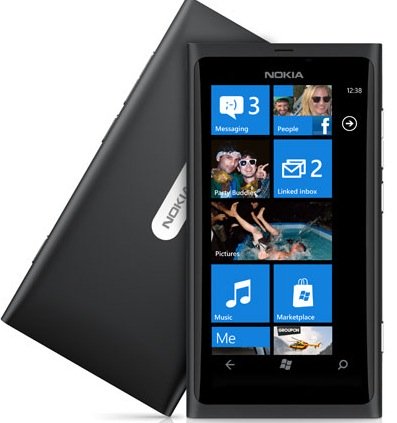
UK retailer Clove has gotten official word from Nokia about the price of the Nokia Lumia 900 and they've put it up for pre-order. The 900 was first unveiled for AT&T but the global version of the phone was announced just a few days ago at the MWC.

The global Lumia 900 is pretty much the same handset as the AT&T version, with the notable exclusion of LTE. You still get a 4.3" ClearBlack AMOLED screen, 8MP camera with 720p video and 16GB of storage all encased in a polycarbonate unibody.

Anyway, the Nokia Lumia 900 is available for pre-order from Clove for £530 (€635, $845). The exact date of availability is still not clear (all Clove knows is it's going to be "some time Q2"). They are also not sure what color options they'll get, but will release the info as soon as they have it.

Carphone Warehouse have a page for the Lumia 900 too, but that's only so you can sign up for a notification when the phone becomes available. They do list May as the month they expect the phone to be available.

Here's the preorder page if you're interested. Also, you can read our hands-on with the Lumia 900 if you're not familiar with it already.

Source

Tuesday, 28 February 2012

Dell Launches The Smallest Gaming Desktop Alienware X51 in India

Alienware X51

Alienware is a company very well known for creating high performance desktop and portable systems. For years now they have been creating some of the fastest pre-built systems around and since becoming part of Dell the build and design quality has taken a leap forward.
Generally gaming and small form factor usually don’t mix but Alienware is hoping to fix with its new incredibly small X51 box.
The versatile design of the X51 enables customers to achieve high performance computing in virtually any living space with a dual-orientation chassis supporting 7.1 surround-sound audio and an optional Blu-Ray disc drive.
Mr. P. Krishnakumar, Executive Director, Marketing – Consumer and SMB, Dell India and Mobility APJ. said
“The Alienware X51 allows us to bring the exciting nature of high-definition, immersive gaming within reach of more gamers than ever before. With the X51, we’ve expanded our gaming desktop offering to cater to all gamers in addition to our core enthusiast and competitive gamers. Now everyone can enjoy the latest games on a sleek, powerful, compact and customizable system. The X51 desktop delivers an incredible feature set for its size and price.”

 High Performance Gaming and Sophisticated Design

The Alienware X51’s intelligently designed chassis blends function and style. The desktop’s sleek matte black finish with dark chrome accents and three customizable lighting zones, controlled by AlienFX software, create a distinguished appearance. The gaming desktop’s thoughtful design with an ultra-quiet dual orientation chassis allows for a horizontal or vertical set-up, allowing flexibility in the X51’s footprint without sacrificing performance. The intuitive internal layout with a mini-ITX motherboard allows customers to perform their own hard drive, graphics card and memory upgrades quickly and easily, giving them peace of mind for the system’s longevity.
“Alienware understands that gamers crave NVIDIA GeForce graphics. That’s why the X51 has GeForce at its heart, combining design innovation with cutting-edge technology to deliver one devastating gaming package. With this desktop, Dell and NVIDIA have set a stellar new standard for stylish small form factor systems,” said Mr. Vishal Dhupar, Managing Director, NVIDIA, South Asia.
Alienware X51 features powerful 2nd generation Intel Core i processors, NVIDIA GeForce GT or optional GTX class graphics cards for intense gaming performance, Wireless-N technology for easy Internet access, HDMI 1.4 for connecting to 3D TVs and watching 3D Blu-ray movies, two SuperSpeed USB 3.0 ports for fast data transfer, High-Definition 7.1 Performance Audio and GDDR5 graphics memory – the most advanced graphics memory offering available. Check the complete specification below.
All Alienware laptops and desktops come with Alienware Command Center, which provides intuitive, user‐friendly access to exclusive applications and controls, including AlienFXTM lighting effects and the AlienFusion power management system. AlienAdrenaline, a new module for the Alienware X51, enables gamers to create unique profiles that launch a series of customizable events when activated, such as opening specific programs, changing AlienFX themes, opening key web links and more.

Alienware X51 Product Specifications:

  • Intel Core i5 and i7 Quad Core Processor Options
  • Intel H61 Express Chipset Architecture
  • Mini-ITX Motherboard
  • Powerful NVIDIA Graphics Card Options
    • 1GB GDDR5 NVIDIA GeForce GT 545 (Standard)
    • 1GB GDDR5 NVIDIA GeForce GTX 555
  • Configure with up to 8GB of DDR3 Memory (4GB Standard); 2x 240-Pin DDR3 SDRAM Slots
  • Fast 7,200RPM 1TB Hard Driveiv
  • Microsoft Windows 7 Home Premium
  • Slot-Loading Dual Layer DVD Burner (Standard) or optional Blu-ray Disc Reader
  • Internal High-Definition 7.1 Performance Audio with Waves MAXX Audio Software
  • Integrated 10/100/1000Mbps Gigabit Ethernet NIC and Integrated 802.11 a/b/g/n Wi-Fi Wireless LAN (standard)
  • USB 2.0 (6x); USB 3.0 (2x); Microphone In; Headphone/Speaker Out; HDMI 1.4 Output; RJ-45 Gigabit Ethernet; Front, Rear and Center Speaker Ports; SPDIF Digital Output (TOSLINK); SPDIF Digital Output (Coax)
  • Alienware 240 Watt Power Supply (Standard) or optional 330 Watt Power Supply
  • Dual-orientation tower system dimensions: h: 13.5” (343mm) x w: 3.74” (95mm) x d: 12.52” (318mm)
  • Starting Weight: 12.1 lbs. (5.49 Kg.) 
Availability and Pricing:
Alienware X51 is available now Alienware.co.in and will be available at the Alienware and Dell Exclusive Stores at a starting price of Rs. 49,990/-. Alienware Gaming Services is available in India at this time.
For more details check http://www.alienware.co.in

Saturday, 25 February 2012

Sony releases Android 4.0 Beta ROM for certain Xperia handsets

Sony Mobile has released a beta of the Android 4.0.3 ROM for certain Xperia handsets. These include the Xperia arc SXperia neo V and Xperia ray. Compared to the alpha ROM released back in December, the beta enables GSM radio and FM radio functionalities, which means you can make and receive calls and browse the web. However, Wi-Fi and Bluetooth functionalities are still unavailable.


he new beta ROM includes features such as the new lockscreen, which includes the ability to control the music player and launching the camera. Sony will also include the face unlock feature found on the Galaxy Nexus in the final version, but it is currently unavailable. Other new features include the ability to bring up a list of messages that you can send after you decline a call and a new dialler app which features the highly useful quick dial mode.
Apart from this you get the usual Ice Cream Sandwich goodies, such as the new multi-tasking view and notification screen where you can use the swipe gesture to remove items from the screen. The beta ROM does not include the usual Google applications, however, such as Gmail, Google Maps, Android Market, etc. but they will obviously be added in the final version.
The ROM is now available for download on Sony's website but before you go ahead and download it do keep in mind all the limitations of the current ROM mentioned above. There are also some issues, such as having to unlock the bootloader, which means you won't be able to download the final version when it comes out a couple of months later. So make sure you go through all the warnings and instructions in the source link below before you install it on your phone.

Sony's PSP Vita released


Sony's PSP Vita is finally on sale and those who pre-ordered or queued half the night are already gaming away.
Weighing less than 300g and measuring 182 x 83.5 mm, the Vita is available with Wi-Fi or 3G/Wi-fi.
The 5inch OLED touchscreen and dual analog sticks make the Vita perfect for game play, with the latest tech delivering improved performance and graphics.
The Vita also has front and rear facing cameras, built in speakers and mic, 512MB main memory and 128MB VRAM and is compatible with the PlayStation Network and the PS3.
The cost varies from £197-£219 dependent on the model.
Check out more details at; http://uk.playstation.com/psvitasystem/

Saturday, 18 February 2012

The Mac HAck

There are a lot of things that Apple gets right, but pricing is not one of them. This is a company that’s made a fortune by defying conventional wisdom, so it’s hard not to admire it and its products despite their occasional quirks and shortcomings. Apple’s appeal has grown from a long history of understanding what users are really doing with their computers and devices, and knowing how to create things that people will desire. It’s all about the experience— their goal is to make you feel delight and wonderment from the time you walk into a shop till you take your new device out of its box and switch it on for the fi rst time. Everything that Apple does, from the iron-clad secrecy it maintains around upcoming products to the theatricality of its unveilings, is designed to further that experience. Once the association with joy has been made in buyers’ minds, they’re hooked. Mac OS X has a lot of appeal: the graphics are rich, security is higher than Windows, it’s generally easier for beginners to get used to, and there’s some excellent software available for creative professionals. For most people though, just the “coolness” factor and thrill of getting it working without spending money on Apple hardware are reason enough to try. This is the “reality distortion fi eld”
effect that dozens of other companies have tried to emulate over the years, to varying degrees of success. Just like
everyone else, Apple has had to adapt to a changing world, one in which everything is mass produced in China, there are only two or three manufacturers of each kind of high-end component, and it costs too much to try and do things on your own. Today, it’s possible to take a small chunk of that Apple experience and use it on your own, outside the confi nes of the expensive ecosystem built specifi cally for it. The enjoyment won’t be the same, but the whole point is to expand users’ options and give them the choice. We’re referring, of course, to running Mac OS X on any ordinary PC, something that the Cupertino giant does not like, endorse or acknowledge in any way. Apple’s desktop OS is fi nely tuned to work with its own hardware, software and online services: an entire ecosystem. This has the disadvantage of limiting your choices (and budget range) when it comes to buying a new computer, but it has the advantage of eliminating the thousands of variables that tend to make Windows machines slow or unstable. Apple has never expressly allowed other brands to sell machines with OS X preinstalled, so you’ll never fi nd a Mac
bogged down with “bloatware” added on by third-party manufacturers, and you won’t have to go hunting for a printer
driver when you need one, because it’s already built in. Be warned, running OS X is a tricky proposition and it’s not endorsed by Apple in any way. You’ll be contravening their end-user license agreement and will not have access to any help or support from them. You also won’t have a Macspecifi c keyboard, mouse or trackpad, which will make several shortcuts and gestures impossible to use. This process is not recommended for casual users, or anyone who isn’t familiar with the internal workings of a PC. You run the risk of erasing your hard drive and losing whatever’s on it, so make sure you have backups. Moreover, obtaining a legal copy of Lion, the latest version of OS X, is entirely your responsibility.
The Hackintosh Process
Installing an operating system on hardware not originally designed for it is a tricky process. Apple is famous for building experiences around tightly integrated hardware and software, so problems are bound to crop up when trying to run OS X on unfamiliar components. It's not impossible to run OS X on commodity PC hardware, but this isn't a project to undertake if you're not 100 percent comfortable with your computer's inner workings. As of now, OS X Lion is a bit more diffi cult to get running than previous versions, Leopard and Snow Leopard. Methods of running these older versions have existed for years now, and a vibrant developer community online is constantly making new drivers available to extend compatibility with all kinds of hardware. With Lion only recently released, the driver database is understandably small, and it's quite likely that you'll run into compatibility issu4es and other odd problems. The most frustrating issue we faced was with an incompatible USB keyboard, which caused all sorts of input errors! Before beginning any experiment, we must emphasize the importance of backing up everything on your computer. Make a list of all hardware and drivers and search online for known
problems. Then, if you're sure you understand all the risks and liabilities, you're ready to proceed.


REQUIREMENTS


Kakewalk: Freely downloadable from
www.kakewalk.se, this is a simple yet
powerful utility which is nothing but a set  
of scripts running in the background. 


Lion installer: The operating system (Mac OSX
Lion v10.7) can be downloaded for as little as USD
29.99 (approx Rs 1,400) from the Mac App Store
(Mac required). Download this 3.5 GB DMG file.


Minimum 8 GB USB stick: This USB
stick will be formatted and loaded with the
bootloader and the Lion installation files.


A Macintosh: A Mac is needed to create the USB
stick with the necessary fi les for installing Lion on a
PC. If you don’t own one, you'll have borrow one for
at least an hour after the installer is downloaded.
You won't be able to download Lion from the
Mac App Store if this Mac is already running it.


MultiBeast and KextBeast: These free utilities
can be found atwww.tonymacx86.blogspot.com.
They are needed to install basic drivers for the PC.

-------------------------------------------------------------------------------------------------------------


Once you have downloaded Lion
and have all the fi les ready, you
can start the process.


STEP 1
Copy the Lion installation fi le (InstallESD.
dmg) and Kakewalk to the desktop of the
Macintosh. Run the Kakewalk utility, and
on the main screen, click on ‘Install to a USB stick’.


STEP


sTEP 2
On the next screen, select the location
of the Lion DMG fi le and choose the USB
stick as the destination. Make sure you
choose the correct destination (the USB
stick), or you'll end up installing it to the
Mac you're working on. When you're sure,
click the ‘Create’ button.


STEP 3
The Kakewalk utility will do the necessary
work in the background. It involves
formatting the USB stick, mounting the
Lion DMG image, copying the installer
fi les and packages to the USB stick
and a lot more. All this is done in the
background and may take a while
depending on the speed of the pen drive.
Your USB stick will also be renamed to
‘Kakewalk’.


STEP 4
After the process is complete, the
utility will ask you to start the Kakewalk
installation. Click OK to continue and
the next screen will ask you to choose
your motherboard model number. The
exact version is preferable, but a close
variant will also do. Make sure you have
an Internet connection as Kakewalk will
need to download the necessary drivers
from its repository. If your motherboard
is not listed, you'll have to choose the
closest match. Then carefully select
your destination as the USB drive (now
renamed as Kakewalk). Click on ‘Start
Installation’. After completion, you can
safely eject the USB stick and return the
Macintosh to its owner, unscathed.
STEP 6
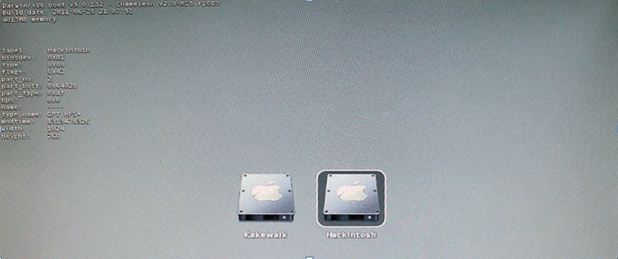
When you boot from the USB stick,
you will be greeted by Kakewalk's
EFI bootloader. Select the USB stick
(Kakewalk) on your screen and press
[Enter].
WARNING: The target hard drive will be
reformatted and all data on it will be lost.
If possible, install Lion on a new, blank
hard drive.
STEP


STEP 5
Now plug the USB stick into your PC and
turn it on. Go to the BIOS where a few
changes need to be made. Change the
boot priority to USB HDD. Next, make
sure you make the following changes if
you have the options in your BIOS: HPET:
Enable (64-bit), ACPI Suspend type: S3
(STR) and Hard drive: AHCI enabled. Save
and close the BIOS settings. Restart the
PC and boot from the USB stick.


STEP 6
When you boot from the USB stick,
you will be greeted by Kakewalk's
EFI bootloader. Select the USB stick
(Kakewalk) on your screen and press
[Enter].
WARNING: The target hard drive will be
reformatted and all data on it will be lost.
If possible, install Lion on a new, blank
hard drive.


STEP 7
After a long process during which you'll
see lines of text characters scrolling
continuously, you will land at the
Lion installation screen. If you have
not reached here, it's possible that a
compatibility issue has been discovered.
Note the error lines displayed on screen
and search the Internet for a specifi c
solution. You should fi nd specifi c help
on the various forums dedicated to OS X
fans. For example, the error ‘DSMOS has
arrived’ means that the video card is not
compatible.


STEP 8
Follow the steps shown on screen till you
arrive at the screen which asks you to
choose the destination disk to install the
OS to. At this screen, click on ‘Utilities’
and then ‘Disk Utility’. This will start the
partition manager for Mac OS X.


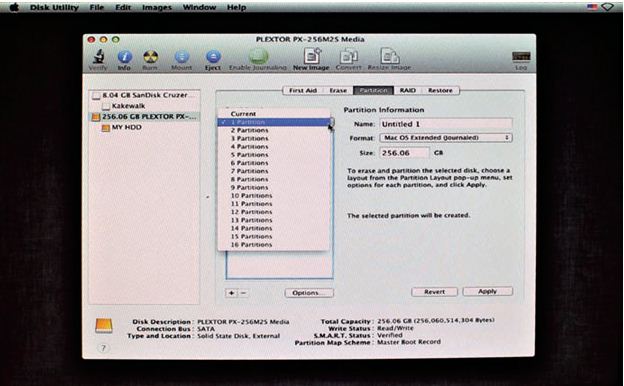
STEP 9
Using Disk Utility, click on your target
hard drive in the left pane and then click
on ‘Partition’ on the right pane. From the
Volume Scheme, select ‘1 Partition’ and in
the ‘Options’ below, select ‘GUID Partition
Table’. Then in the Volume Information,
type a name for the partition, select
the format type as ‘Mac OS Extended
(Journaled) and leave the rest untouched.
Finally, click on ‘Apply’ and proceed to
format the drive. Once done, exit Disk
Utility and proceed with the installation of
the OS. The installation will take around
30 minutes, at the end of which your
computer will reboot. Leave the USB stick
plugged in, as there is no bootloader yet.
INTELLIGENT COMPUTING CHIP 09/2011 93


STEP 10
This time, when the system boots again,
choose to boot from the hard drive
instead of the USB stick. Once booted,
you should be welcomed to the next
steps of the installation. Continue with all
the necessary details that are asked on
the screen.


STEP 11
Once done, you should arrive at the
default Lion desktop. Congratulations,
your installation has been successful! But
you have still got to install the bootloader
to your hard drive so that it can boot up
on its own.


STEP 12
Locate your USB stick in the OS X Finder
and open it. You will fi nd the application
‘Kakewalk’—double-click and run the
utility. Click on the icon that reads ‘Install
to Computer’.


STEP 13
This screen will highlight the
motherboard model you chose while
making the USB stick on the Macintosh.
You cannot change anything here, so
simply click on ‘Start Installation’. After a
few minutes, you will be asked to reboot
the machine. Now your bootloader is
installed on your system and you can
safely boot your PC from the hard drive.
Mac OS X Lion is ready to go!


STEP 14

Installing drivers is the biggest headache,
but you can do it in a few steps. First,
using MultiBeast, you can install basic
drivers for audio, network, graphics, and
system components. Copy the Multibeast
utility to your new desktop and run
it. Follow the steps till you reach the
‘Installation Type’ screen. From the drop
down list, carefully choose the drivers of
your motherboard and graphics card by
referring to their respective user manuals.
If you are not sure of any of the drivers,
simply don’t select it, or else you will
cause errors known as Kernel panic, and
might need to reinstall Lion all over again.
When the process is complete, you'll
need to reboot the PC.


STEP 15
 Additional drivers that are not available <
through Multibeast can be downloaded
and installed separately using the
KextBeast utility. The drivers are usually
in the form of .KEXT fi les and need to
be inserted into certain folders and their
permissions set to a particular level.
KextBeast does it for you automatically.
All you need to do is copy the KEXT fi les
and the KextBeast utility to the desktop
and run the utility. It will automatically
search for the drivers on the desktop and
install them.